Integrations
Modme & Kommo integration
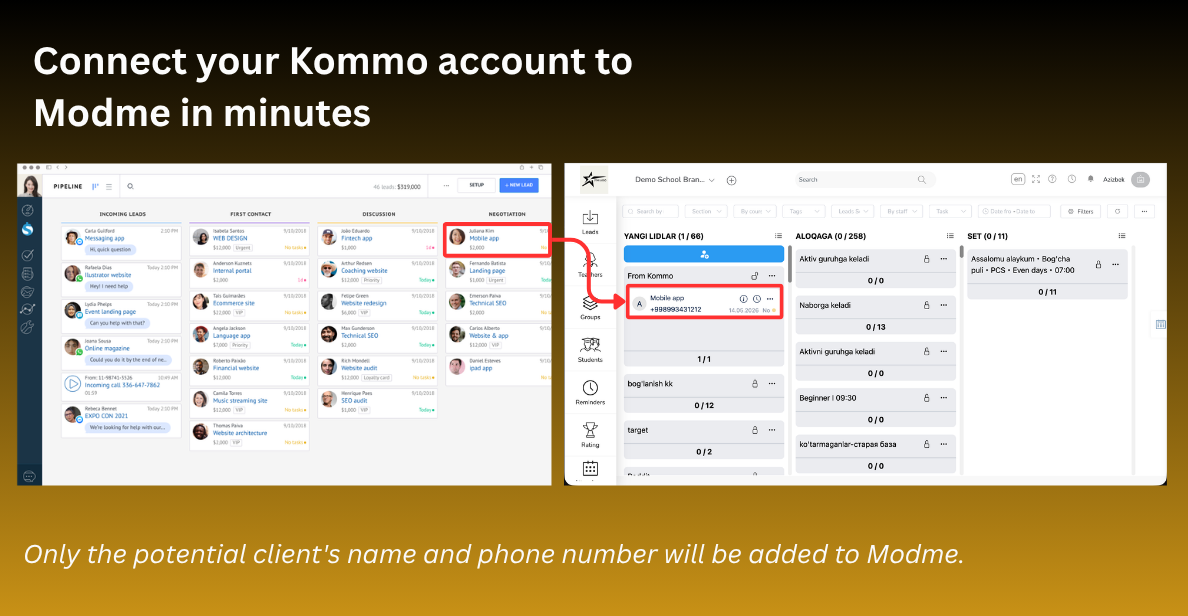
Connect your Kommo account to Modme in minutes. Only the lead's name and phone number are added to Modme.
Step-by-step guide
Just 4 simple steps and the integration is ready
1Step 1
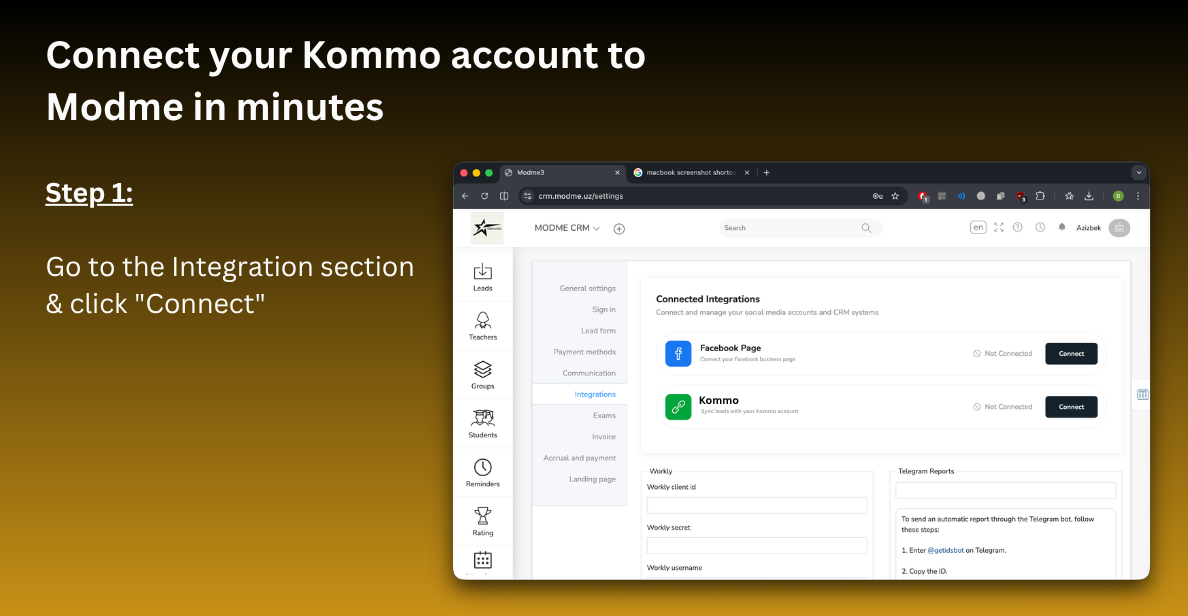
Open the Integrations section
In your Modme CRM settings, open the Integrations section and click the Connect button in the Kommo card.
2Step 2
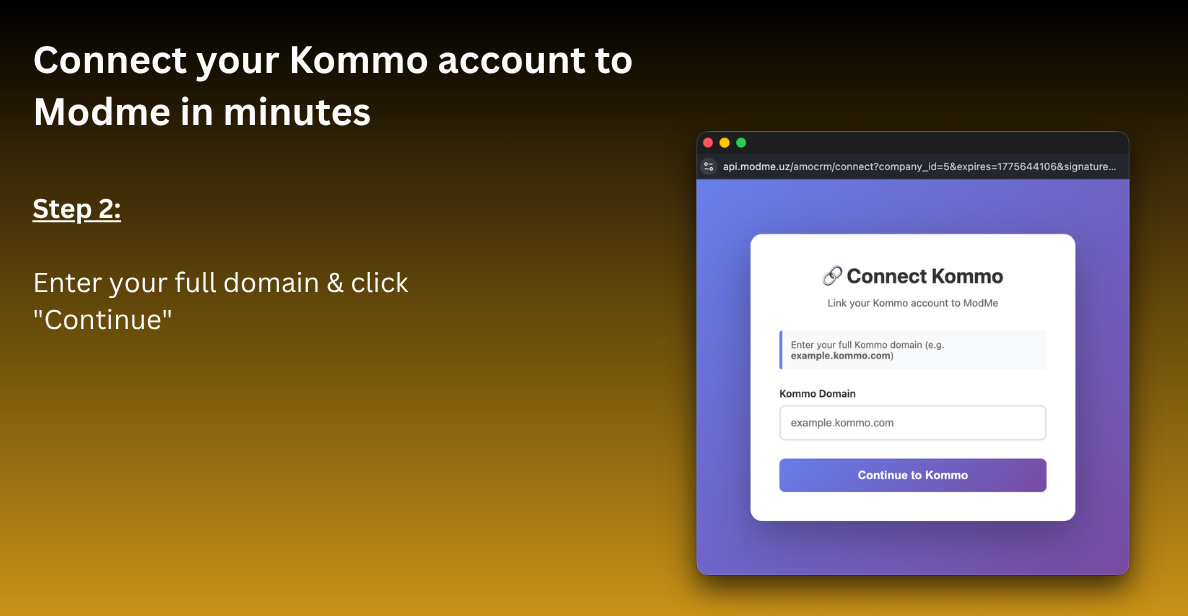
Enter your Kommo domain
Provide the full address of your Kommo account (e.g., example.kommo.com) and click Continue.
3Step 3
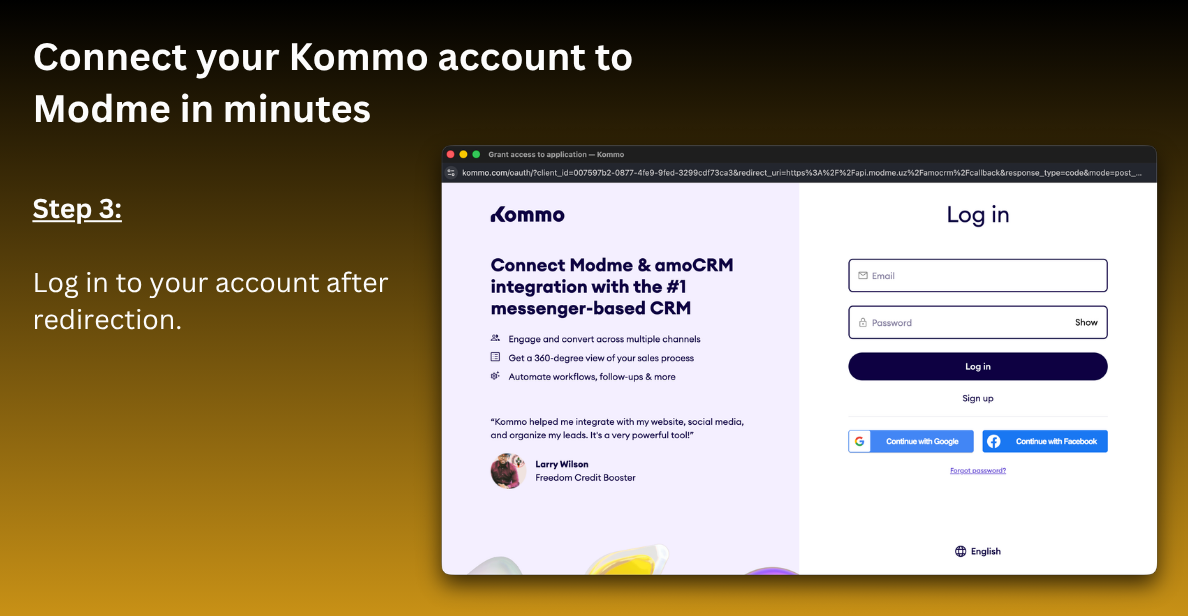
Sign in to Kommo
After redirection, sign in to your Kommo account to grant Modme access to your data.
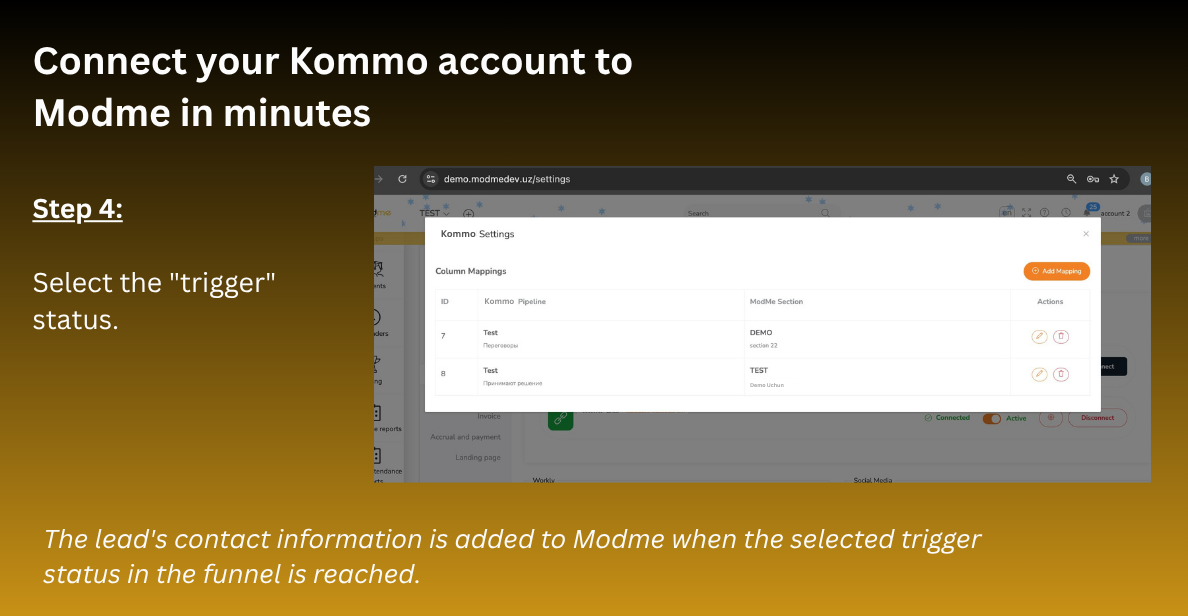
4Step 4
Select the trigger status
In the integration settings, choose the pipeline status that will automatically push lead contact data into Modme.
Integration result
When a lead reaches the selected trigger status in your Kommo pipeline, the lead's name and phone number will automatically appear in the Leads section of Modme.
Only the lead's name and phone number are transferred to Modme — no other data.
Still have questions?
If you run into any difficulties during the setup, reach out to our technical support team.
Contact support